

What Is Cursor AI? The Review Guide for Beginners Today
Learn what is Cursor AI, how its AI code editor works, main key features, pricing, usage, pros and cons, and whether it is worth using for coding in 2026.
I evaluated Cursor in September 2026 by testing it on a full-stack Next.js and TypeScript web application. My test scope focused on completing three core coding tasks: building a responsive dashboard component, refactoring an API routing layer, and running cross-file bug fixes across the project codebase. Cursor is an AI-powered code editor designed for writing, understanding, editing, debugging, and navigating codebases. In testing, Cursor demonstrated strong project-wide awareness and fast multi-file diff generation, though it still requires active developer supervision on complex architectural changes.
This review combines hands-on evaluation with product research to examine how Cursor works, its core features, Agent capabilities, pricing, supported platforms, practical strengths, and key limitations, while brief context is also included for visual app builders like Enter Pro as an alternative approach.
What is Cursor AI?
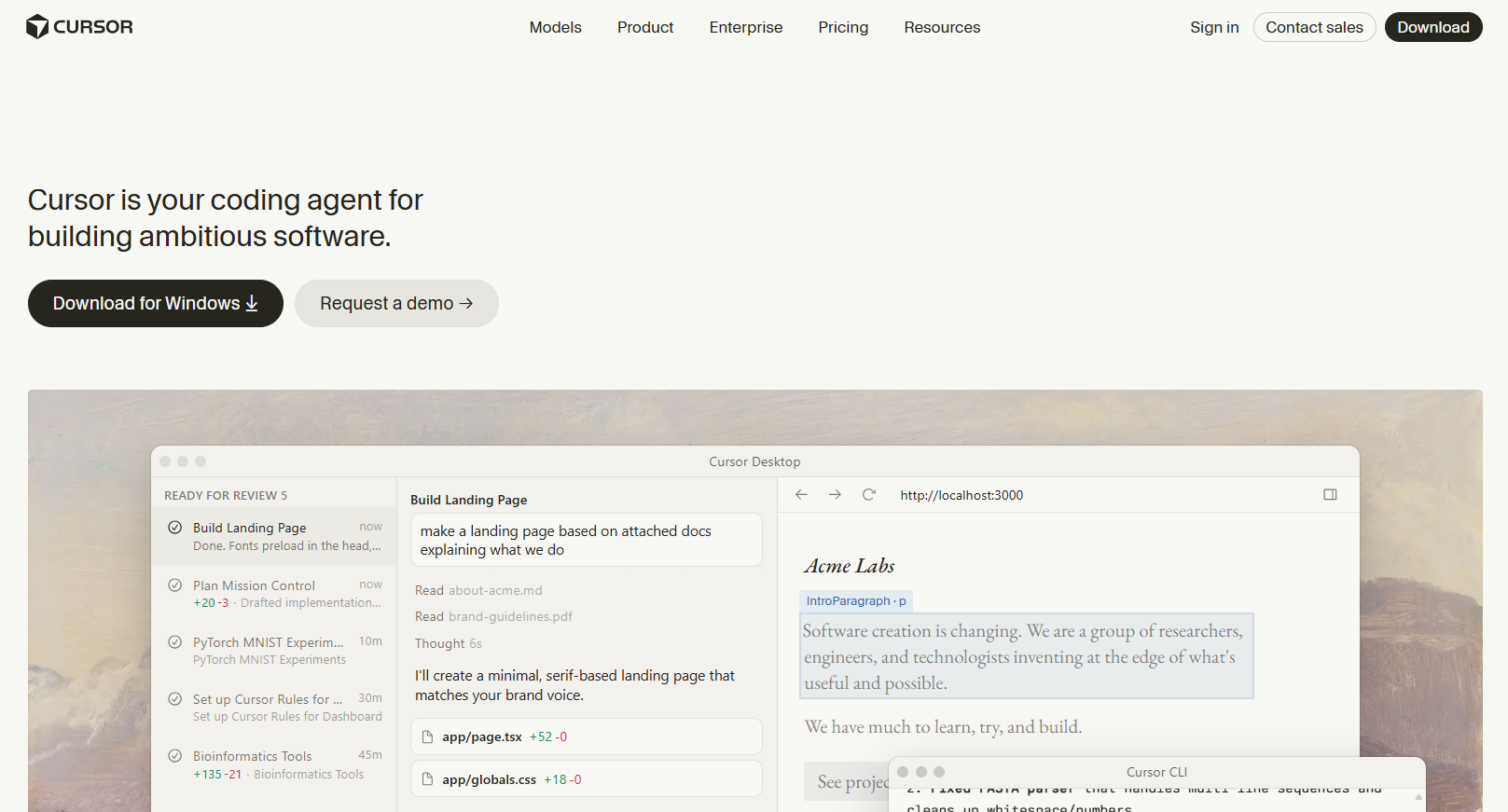
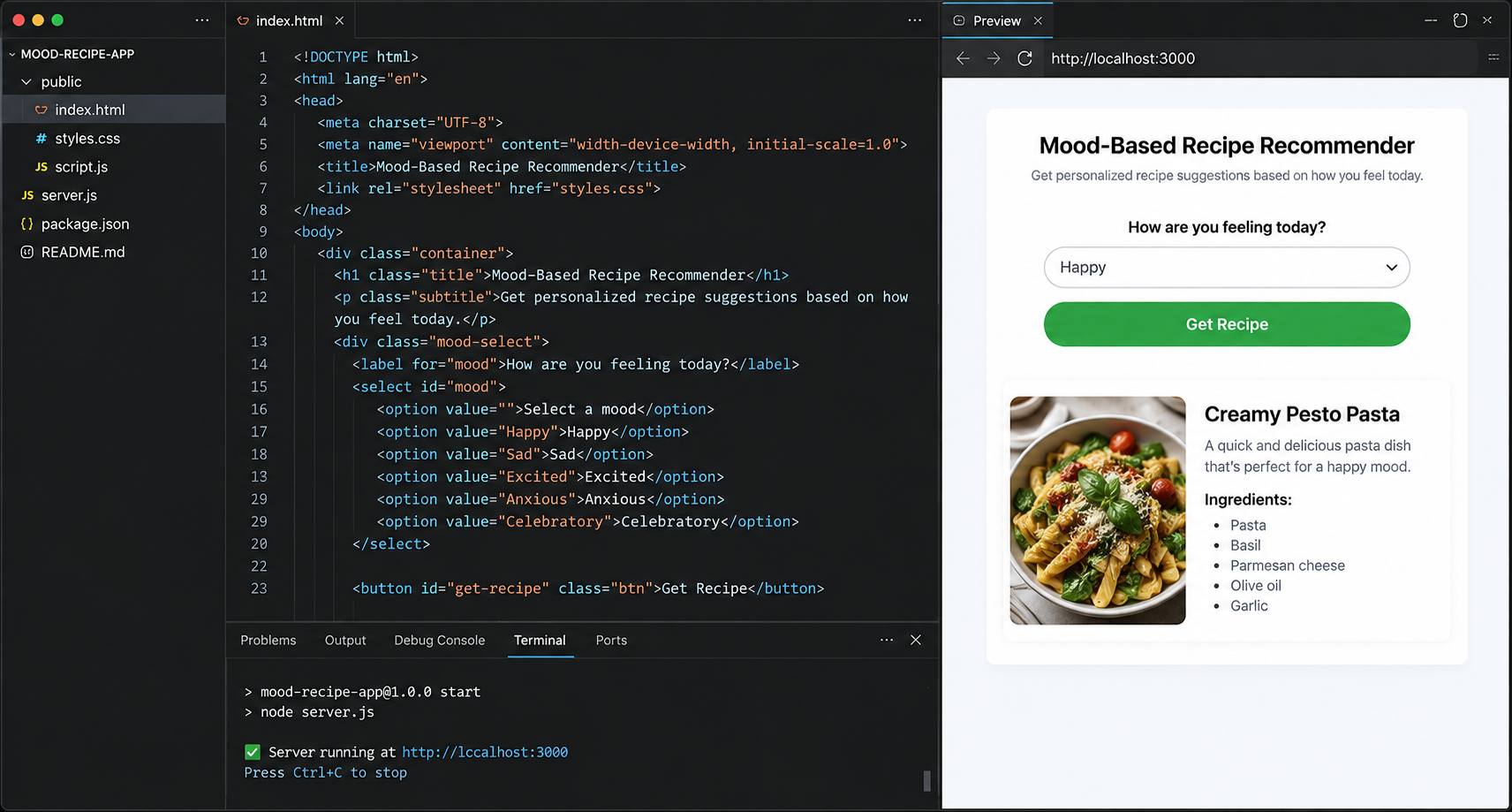
Cursor is an AI-powered code editor built for people who want coding assistance directly inside their development environment. Instead of writing code manually and using a separate chatbot for help, I can use natural-language instructions within Cursor to generate code, explain an unfamiliar function, modify existing files, debug an issue, or refactor part of a project. It still feels like a code editor, but AI is built into the workflow.
That makes Cursor AI code editor particularly useful when working with an existing codebase. The AI can use project context to make its responses more relevant, while I can review the suggested changes directly in the editor. It is designed primarily for developers and people who are comfortable reading and working with code.
How does Cursor AI work?
Cursor uses background project indexing and natural-language processing directly inside the code editor. When I open a project, Cursor indexes files asynchronously using embeddings to map relationships across my entire codebase.
I gave natural-language instructions through three primary entry points:
- Inline Edits (
Cmd/Ctrl+K): Generated or modified code within my active file. - Codebase Chat (
Cmd/Ctrl+L): Answered questions using project-wide context. - Composer / Agent (
Cmd/Ctrl+I): Executed multi-file edits and terminal commands automatically.
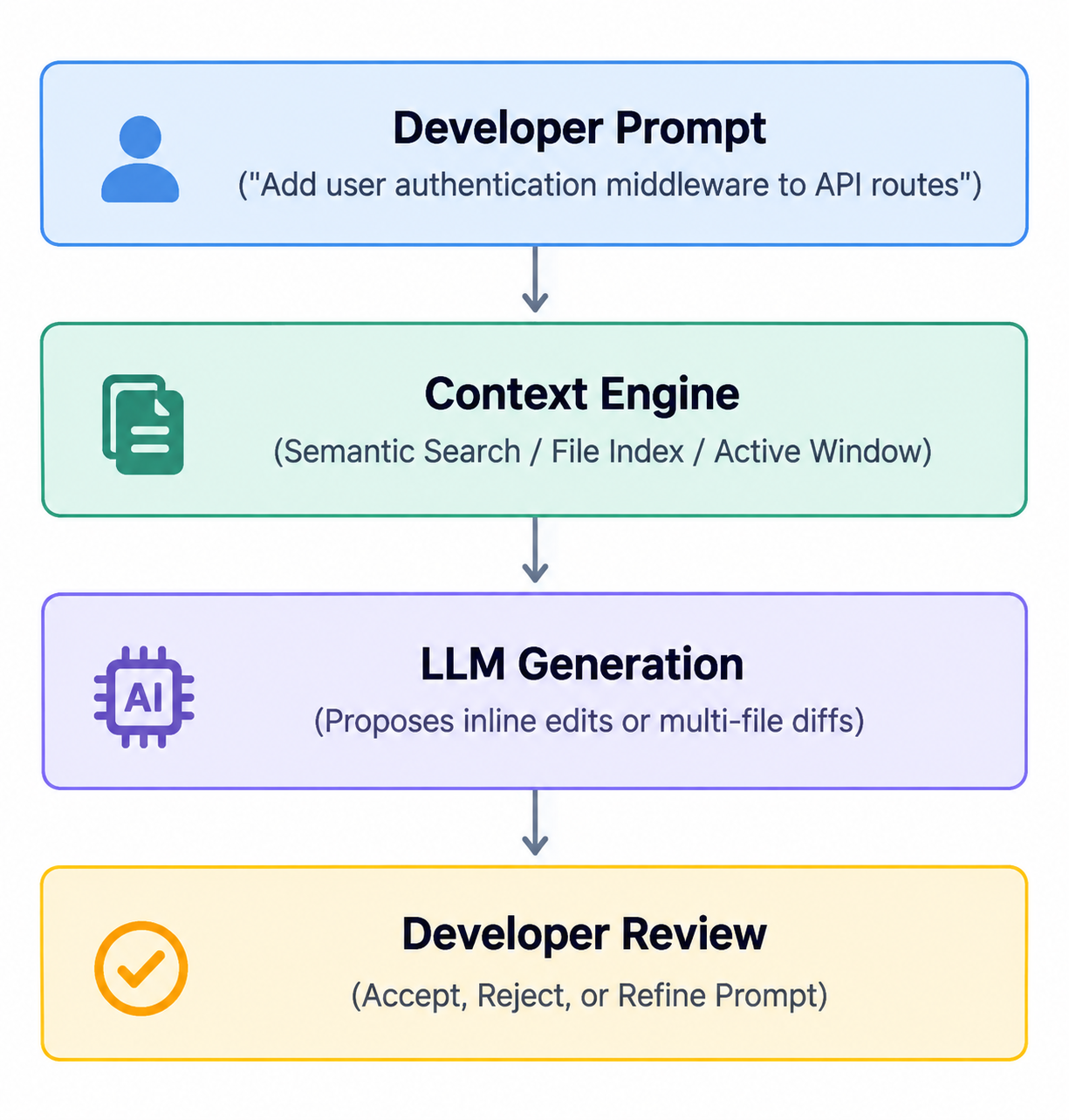
My interaction with the editor follows a continuous loop:
- Request: I described the required change in plain text using natural language. During this phase, I could tag specific files, documentation, or the entire codebase to provide explicit context for my task.
- Generate/Edit: Cursor queries its indexed files and processes the context to propose implementation details. It then outputs new code snippets or generates multi-file diffs directly within my project.
- Review: I inspected the generated green and red diffs line-by-line in the editor. This step allows me to verify logic, check for syntax or runtime issues, and test the code before accepting any changes.
- Refine: When the output requires adjustments, I submitted follow-up prompts to guide further changes. I repeated this iterative feedback loop until the implementation met my exact requirements.
How to use Cursor AI step by step
If you are following this Cursor tutorial, the steps below show how to install Cursor, open a project, invoke its AI features, and review and refine the generated changes.
Step 1: Install Cursor and open or create a project
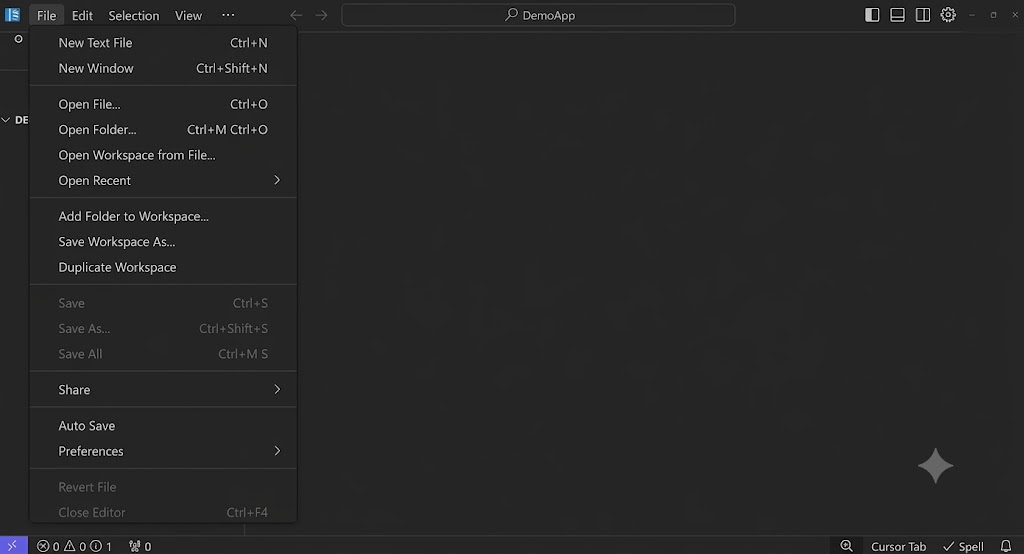
After installing Cursor AI, I started by launching Cursor and completing the sign-in or onboarding process before opening a project. From the application interface, I could work with an existing codebase or start a new project.
Step 2: Invoke Cursor AI and describe your coding task
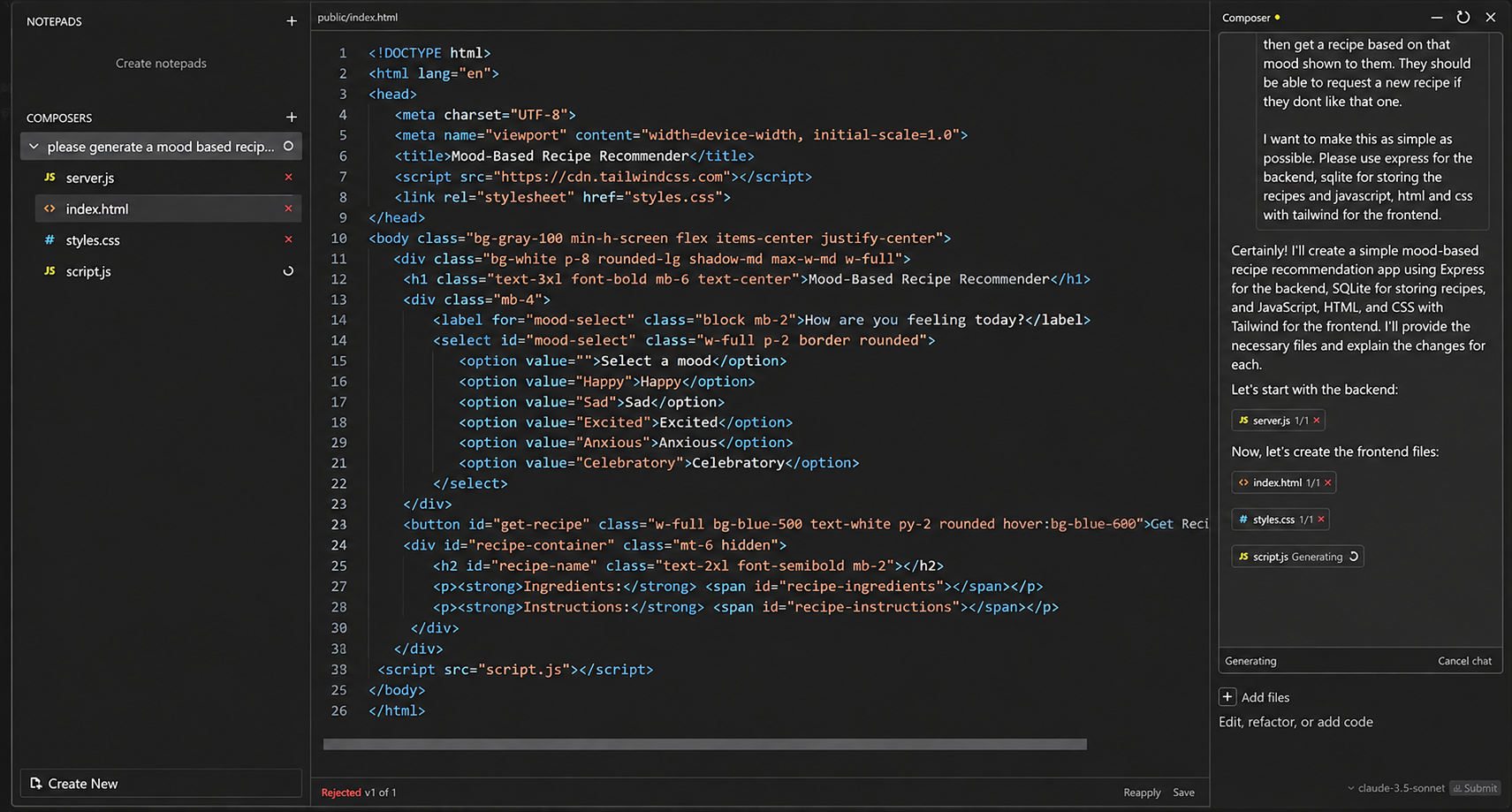
After opening the project, I invoked Cursor's AI through the available keyboard shortcut, AI chat or panel, and Agent entry point. The chat or panel worked well for questions, explanations, targeted edits, and code generation, while Agent is intended for broader tasks that may involve several steps or files.
Step 3: Review, test, and refine the result
I reviewed the generated changes before accepting them and ran the relevant application or tests to check the result. When a change needed more work, I sent a follow-up instruction and reviewed the updated output. This review-and-refine cycle matters because an AI-generated answer can look reasonable while still requiring corrections.
Cursor AI code editor review: Pricing, features, pros and cons
Cursor combines AI-assisted coding with a familiar code editor workflow, but its value depends on how much you rely on AI for coding, debugging, and working with existing projects. In this review, I look at its pricing, key features, and practical strengths and limitations based on hands-on use.
Cursor pricing and plans
- Usage-based billing: Each plan provides an included usage quota. On-demand usage beyond the tier limits can be enabled and billed in arrears.
- Privacy mode: Available across tiers to ensure user code data is not utilized for training by Cursor or underlying model providers.
Note: The price data is from September 2026. As prices may fluctuate, please remember to check the official website price information before determining the plan.
| Plan | Price | Included Usage & Features |
|---|---|---|
| Hobby | $0/month | Limited Agent requests, access to Composer, and no credit card required. |
| Pro | $20/month | Extended Agent limits, generous Grok limits, access to frontier models, Grok Bot, MCPs, skills, hooks, and cloud agents. Bugbot is available through usage-based billing. |
| Pro+ | $60/month | 3x Pro Agent limits, higher Grok Bot usage limits, generous Grok limits, access to frontier models, MCPs, skills, hooks, and cloud agents. Bugbot is available through usage-based billing. |
| Ultra | $200/month | 20x Pro Agent limits, highest Grok Bot usage limits, generous Grok limits, access to frontier models, MCPs, skills, hooks, and priority access to new features. |
| Teams | $40/user/month | Centralized team billing and administration, team marketplace for internal rules, skills, and plugins, cloud agents and automations with shared team context, Grok Bot access, Agentic code reviews with Bugbot, usage analytics, team-wide privacy mode, and SAML/OIDC SSO. |
| Enterprise | Custom | Pooled usage, invoice/PO billing, SCIM seat management, repository/model/MCP access controls, auto-run/browser/network controls, audit logs and service accounts, AI code tracking API, access/network/audit controls for Grok Bot, and priority support/account management. |
Cursor AI features
Cursor combines several AI capabilities directly within its coding environment, so I can use AI for everything from routine code completion to larger development tasks without constantly switching between tools.
- AI code completion and tab: Cursor's AI code completion helps generate code and provide inline suggestions as I type. The Tab feature can predict and suggest the next pieces of code, which is useful for handling routine coding work more quickly without opening a separate AI conversation for every small change.
- AI Chat: The AI Chat interface lets me interact with Cursor using natural-language instructions. I can ask it to generate or modify code, explain how a piece of code works, investigate an issue, or suggest ways to improve an implementation while staying within the development workflow.
- Cursor agent: The agent is designed for broader, multi-step coding tasks rather than isolated edits. I can give it a larger requirement and let it work through related changes across multiple files, which can be useful when a feature requires updates in several parts of an existing project.
- Codebase understanding and context: Cursor can use the context of an existing project to make its AI assistance more relevant. When I am working with unfamiliar files, functions, or dependencies, I can ask Cursor to explain how different parts of the codebase fit together before making changes, rather than starting with isolated code snippets.
- AI-assisted debugging and refactoring: Cursor can help investigate errors, identify possible causes, and suggest fixes based on the surrounding code. It can also restructure existing code to improve its organization or readability. I still need to review and test these changes because an AI-generated fix or refactor may not always produce the expected result.
- Inline editing: For smaller changes, I can select a specific section of code and ask Cursor to modify it directly. This makes targeted edits more convenient because I can provide instructions in the context of the selected code instead of describing the entire task in a separate prompt.
Cursor rules
Cursor rules let you give AI persistent instructions about how you want it to work, which can be especially useful when a project has specific coding standards or workflows. Instead of repeating the same instructions at every prompt, you can set rules that guide Cursor across your development sessions. Cursor provides three relevant areas: User (global) rules, Memories, and** Project rules**.
- User (global) rules are useful for preferences that should apply across our projects. For example, I can use them to specify preferred coding styles, languages, formatting conventions, or general development practices that you want Cursor to follow whenever you work with the editor.
- Memories help Cursor retain relevant information from previous interactions so I do not always have to repeat the same context. This can make ongoing conversations more consistent, particularly when I return to a task and continue working from earlier instructions or decisions.
- Project rules are more specific to an individual codebase. I can use them for project-level conventions, architecture requirements, or instructions that should apply only to that particular project. This distinction is useful when different projects follow different coding standards or workflows.
Cursor AI use cases
My hands-on testing gave me a clearer view of practical Cursor usage, particularly for understanding existing code, debugging, refactoring, and handling multi-file changes. During my hands-on testing, I used Cursor for these types of development tasks and reviewed the generated changes before testing and refining them. This made it useful for speeding up parts of the development workflow while still keeping manual review and testing as an important part of the process.
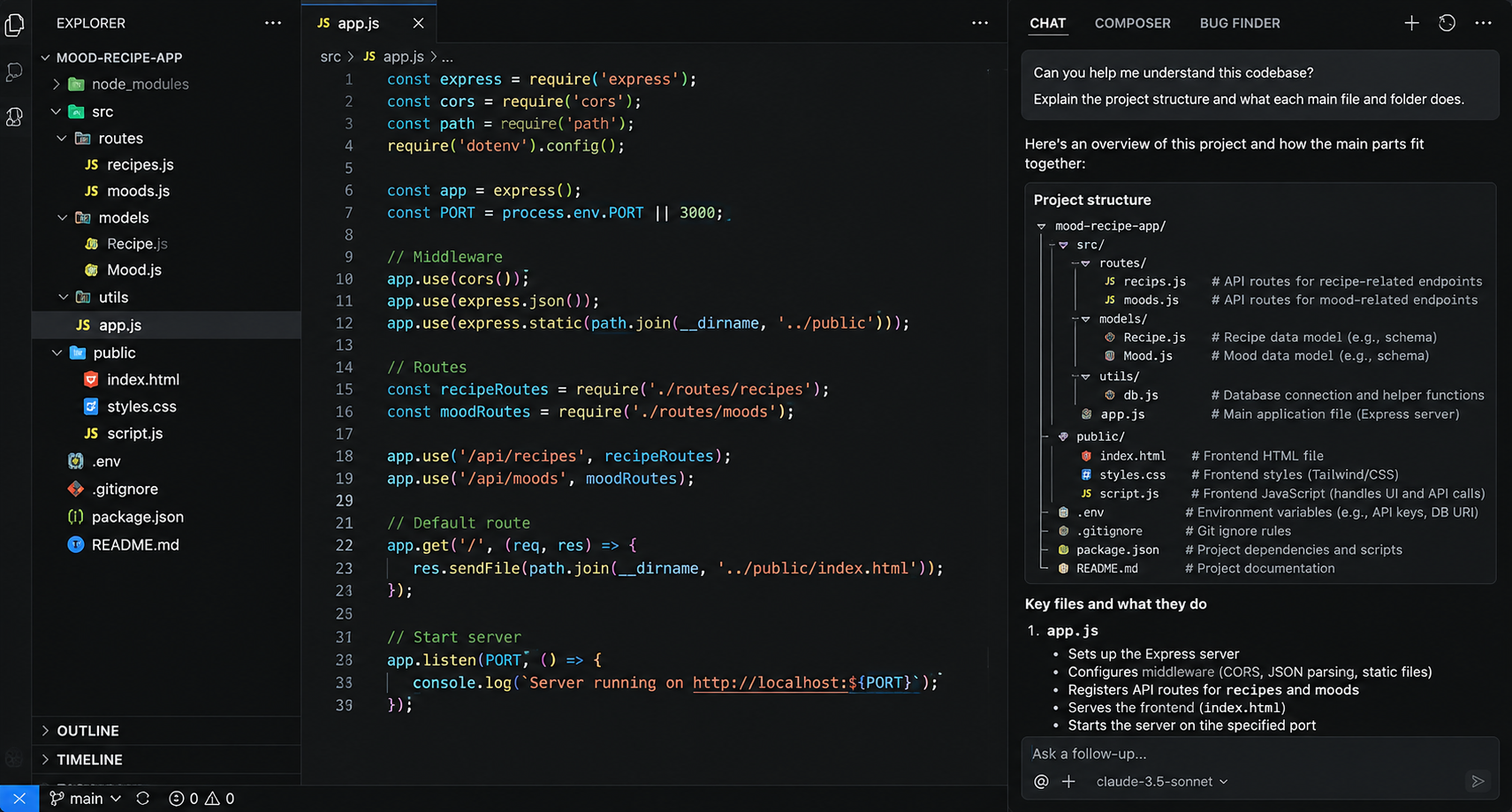
- Understanding an unfamiliar codebase: When I worked with a codebase I had not written myself, I used Cursor to understand its structure, files, functions, and dependencies. Instead of reading through every file manually, I could ask questions about how different parts of the project worked together and use the explanations to get familiar with the code before making changes.
- Refactoring existing code: I used Cursor to restructure code that needed improvement, including simplifying functions, reorganizing sections, and improving readability. After making these changes, I still reviewed the updated code and ran the relevant tests because a cleaner implementation does not necessarily mean the functionality will remain intact.
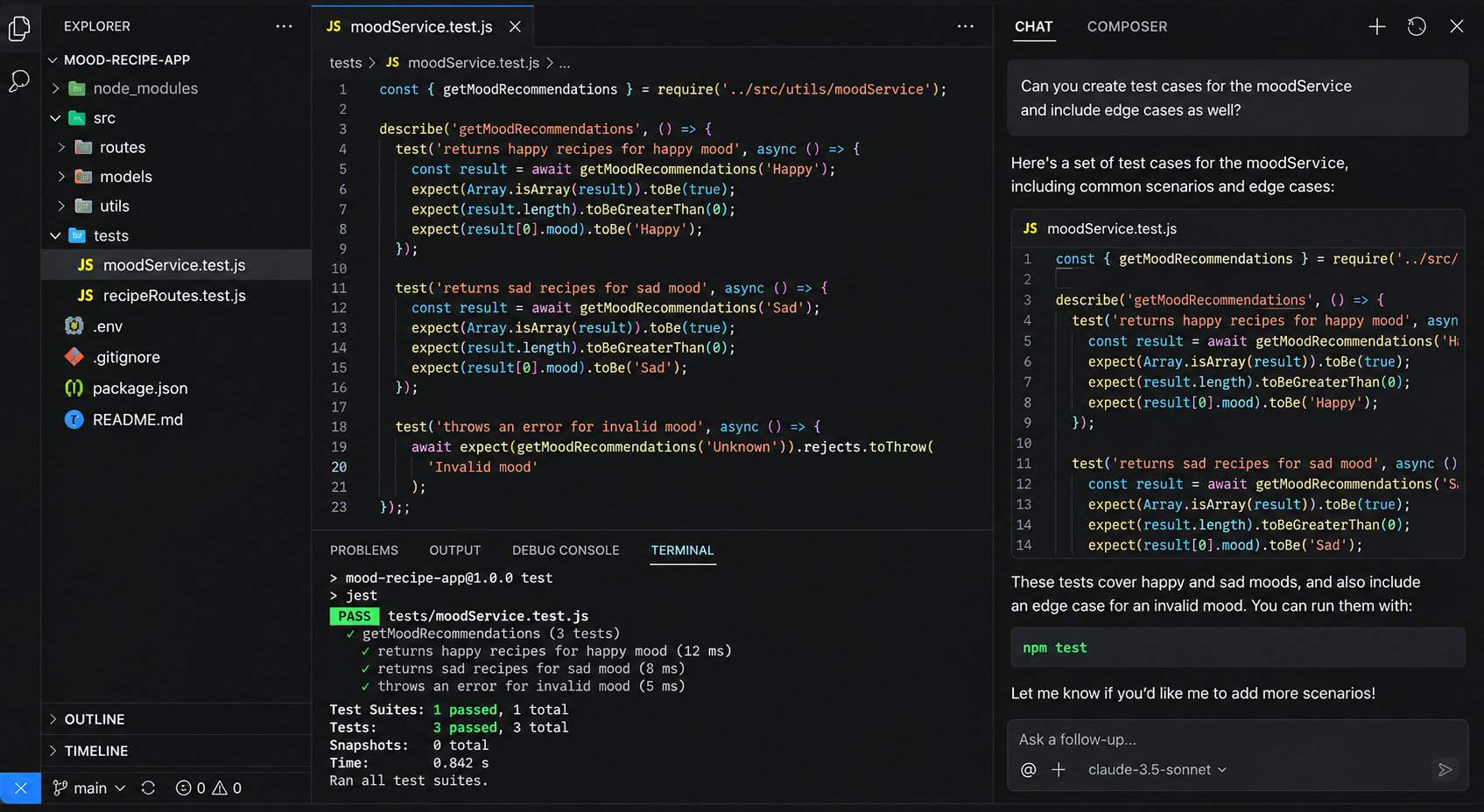
- Writing and improving tests: When I needed additional test coverage, I used Cursor to create test cases based on the existing code and requirements. It also helped me identify additional scenarios and refine existing tests, which was useful when I knew what needed to be tested but wanted assistance creating the individual cases.
- Debugging and fixing errors: I used Cursor to investigate errors by providing the problem and examining its suggested causes and fixes. When the first solution did not fully resolve the issue, I used follow-up prompts to refine it and then tested the result, particularly for errors involving multiple files or more complex application logic.
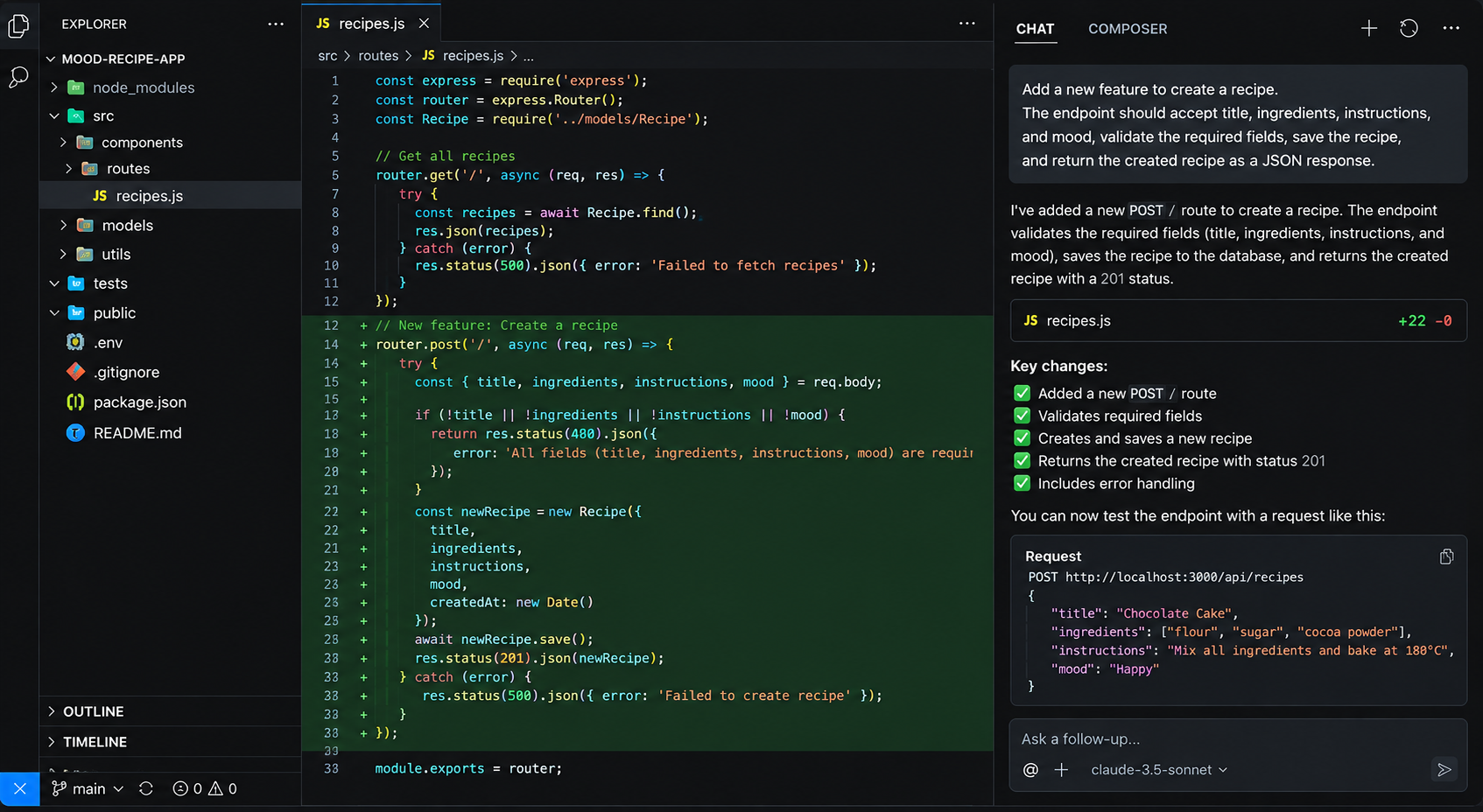
- Building new features: I used natural-language instructions to describe a feature and asked Cursor to create or modify the relevant code. After it generated the implementation, I reviewed the changes across the project and tested the feature, which made Cursor useful for getting an initial implementation in place while keeping control over the final code.
Cursor for Mac, Windows, and Linux
Cursor is available for Mac, Windows, and Linux, so developers can use the same AI-powered coding environment across major desktop platforms. Whether you are using Cursor for Mac, Cursor for Windows, or Cursor for Linux, the core workflow includes AI-assisted coding, Chat, Agent, and codebase interaction. During my testing, these capabilities remained central to the development workflow, while you should check Cursor's official download page for the latest platform requirements before publishing.
Cursor AI pros and cons
After testing Cursor across coding, debugging, refactoring, and multi-file tasks, I found several strengths that make the workflow more efficient, along with some limitations that are worth considering before relying on it for larger projects.
Pros
- Strong AI code generation: Cursor can generate useful code for everyday development tasks, giving me a starting point that I can review and refine rather than writing everything from scratch.
- Relevant codebase context: Cursor can use project context to provide more relevant assistance when I am working with existing files, functions, and dependencies.
- Multi-file editing with Agent: Cursor Agent can handle broader tasks that involve multiple files, which is useful when a feature or change affects different parts of a project.
- Helpful debugging and refactoring: I found Cursor useful for investigating errors, suggesting fixes, and restructuring existing code, particularly when I could provide follow-up instructions and test the changes.
Cons
- Complex tasks can require multiple prompts: Larger or less clearly defined tasks may need several rounds of instructions before Cursor produces the expected result.
- Generated code can be incomplete or inaccurate: Some suggestions may need correction or additional implementation before they are ready to use.
Editorial verdict: Is Cursor AI worth using?
Cursor is worth considering if I want AI assistance inside a code editor and am comfortable working directly with code. Its strongest use cases are development tasks where project context matters, from understanding an existing codebase to generating features, debugging, refactoring, and writing tests.
The main limitation is that Cursor does not remove the need to understand and verify the code it produces. The more complex the task, the more important testing and manual review become. If my goal is to work directly with source code, Cursor fits that workflow well. If I want to turn an application idea into a broader product with less emphasis on manual coding, another type of platform such as Enter Pro may make more sense.
Cursor AI alternative: Using Enter Pro to build an app/site with prompts
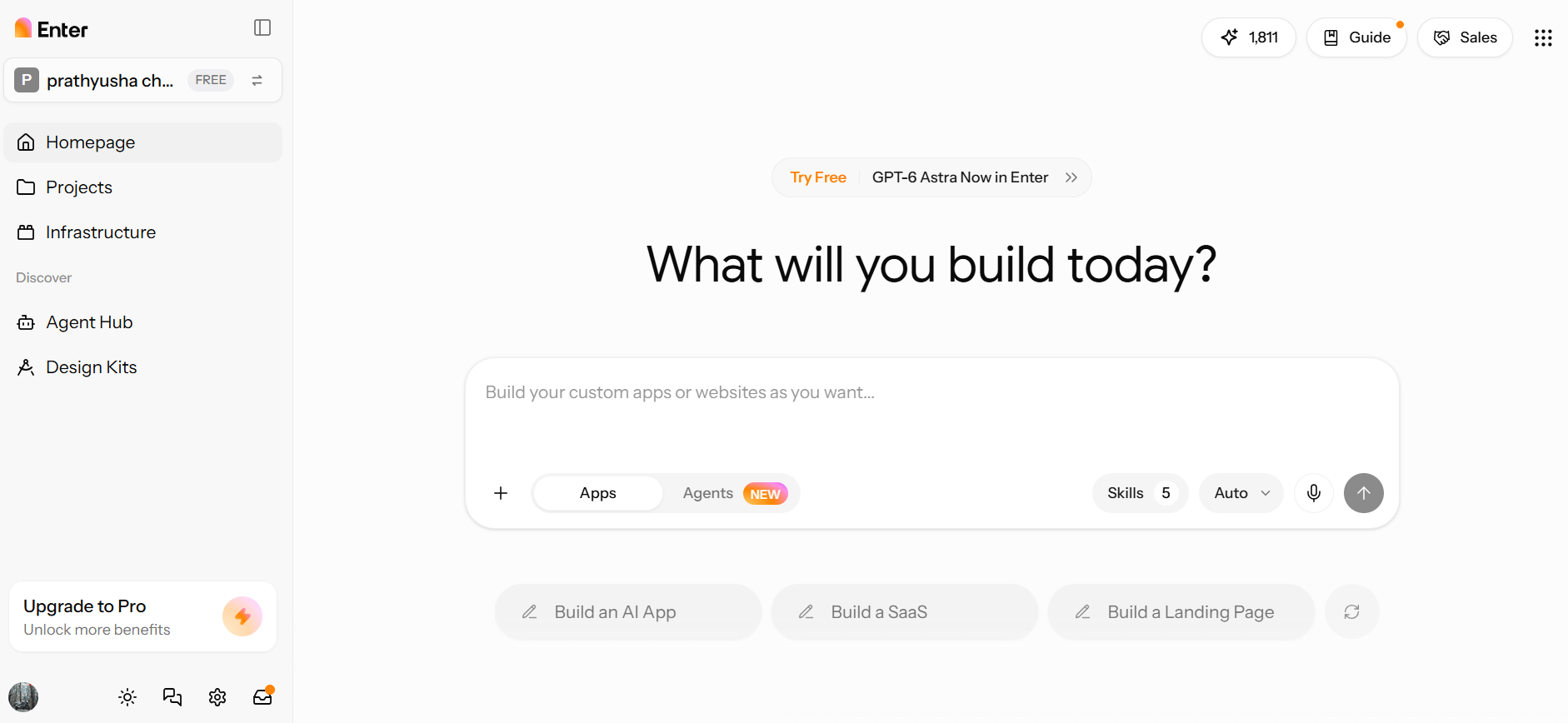
That difference is where Enter Pro becomes relevant. Cursor is primarily an AI code editor, while Enter Pro is an AI app builder. If the starting point is a complete application idea rather than an existing codebase, an application-focused workflow can reduce the amount of manual setup and coding involved. Enter Pro can be considered for users who want to describe an application, customize the generated result, add functionality, and move toward publishing it within one workflow.
Why consider Enter Pro?
- AI-powered application generation
Enter Pro lets you describe an application in natural language, including its purpose, required features, workflows, pages, and other functional requirements. It then uses those instructions to generate an initial application that users can review and refine.
- Visual editing
Enter Pro's visual editor lets users make changes to the generated application visually rather than relying entirely on code. Depending on the current editor capabilities, this can include adjusting layouts, content, styling, branding, and other supported interface elements.
- Integrations and custom functionality
Enter Pro can extend an application beyond its initial generated functionality through supported integrations and customization options. These can help connect the application to external services or add functionality that is specific to the project.
- Deployment and code ownership
Enter Pro also provides options for taking an application beyond the development stage. Before publishing, users should check the current deployment options, what code they can access or export, and the applicable plan terms.
How to build sites/apps with Enter Pro
Step 1: Describe your application
Start by explaining what you want to build in Enter Pro. Describe the application’s purpose, target users, main features, required workflows, and preferred design or branding. For example, if you are creating a booking app, specify who will use it, what they should be able to book, how the booking process should work, and what information each page should display. Submit the prompt and review the generated application to check whether its structure and functionality match your requirements.
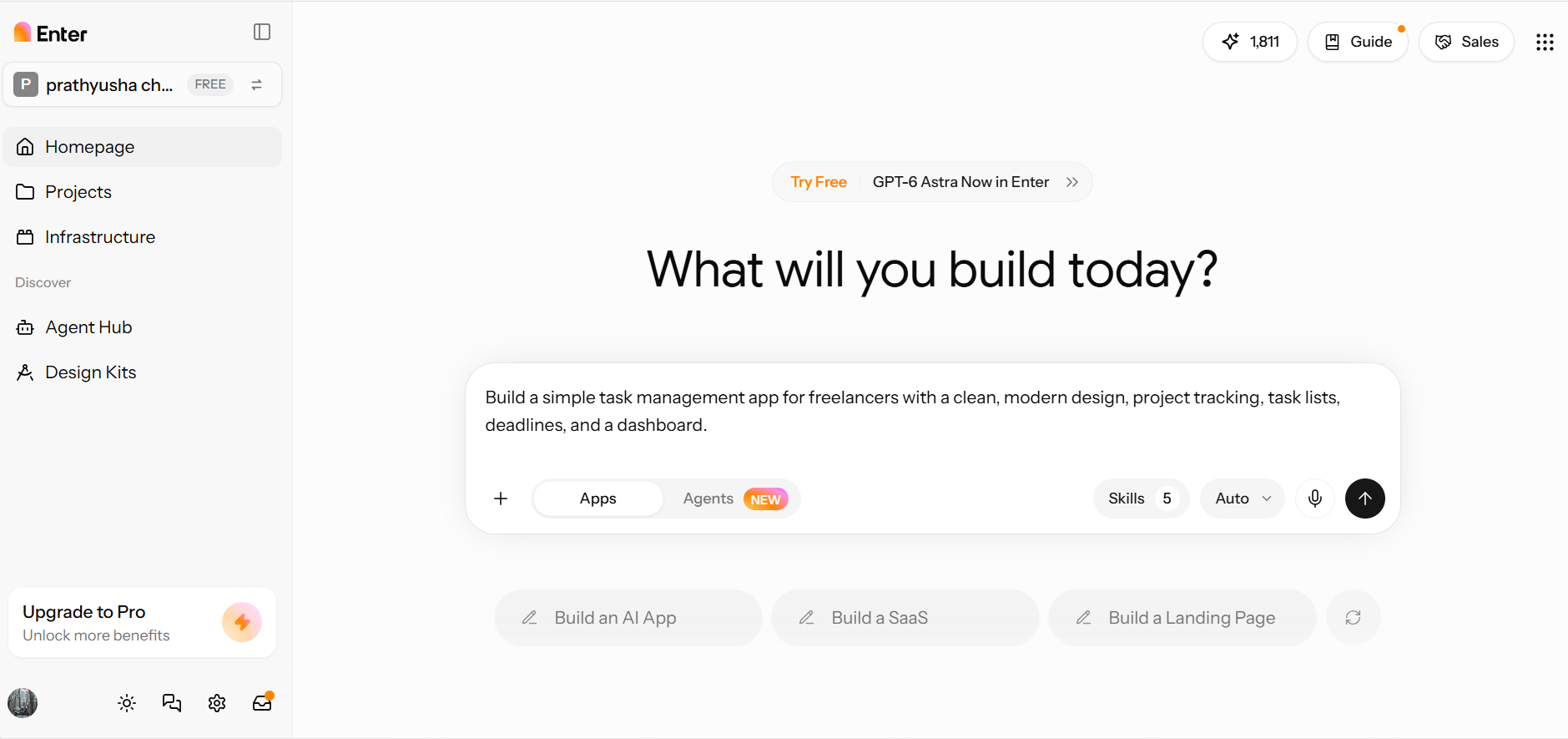
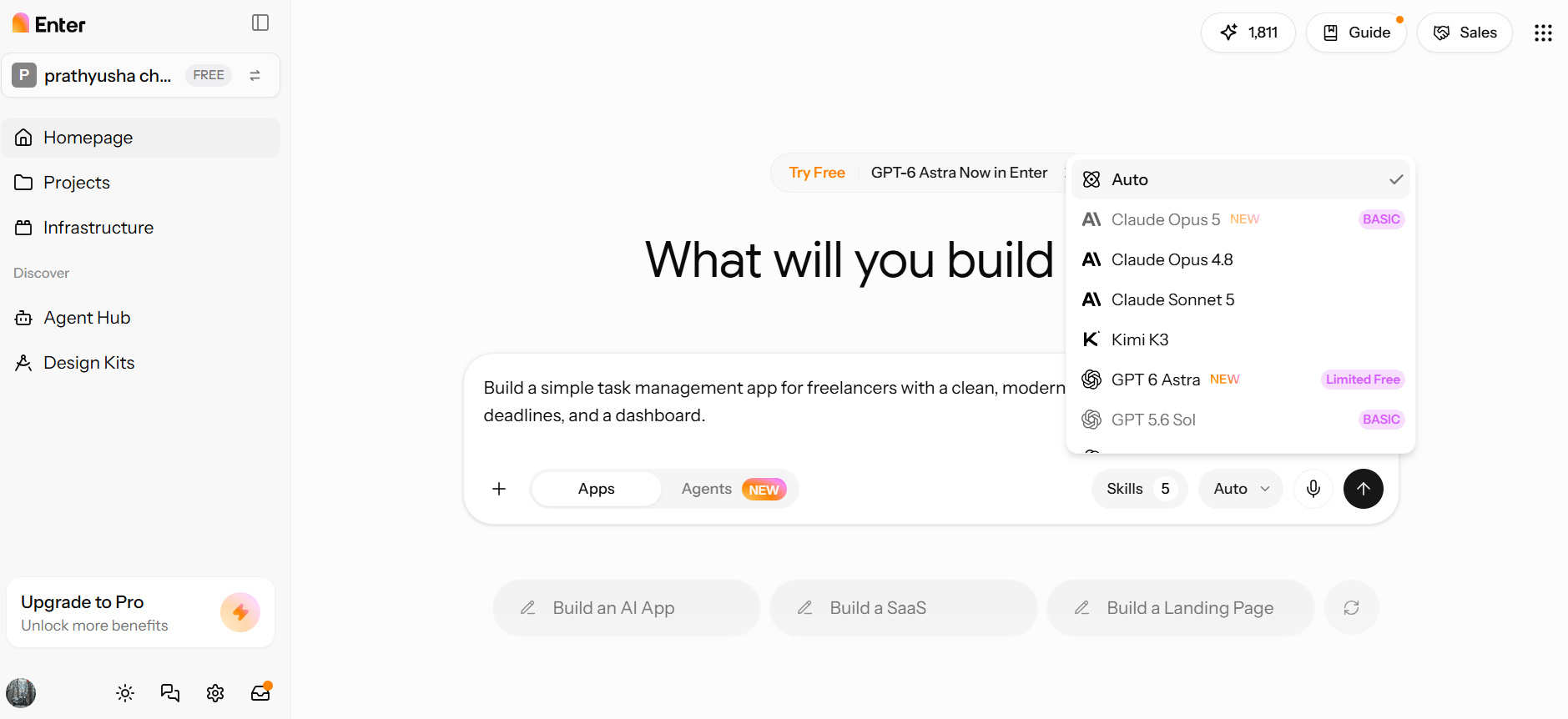
Step 2: Customize your application
Once the initial version is generated, go through the application and identify anything that needs changing. Use Enter Pro’s visual editing tools to adjust the layout, text, styling, branding, or other supported elements. Refine workflows that do not behave as expected, and add supported integrations or custom functionality when your application requires them. Preview the changes as you work, so you can confirm that each update matches your requirements.
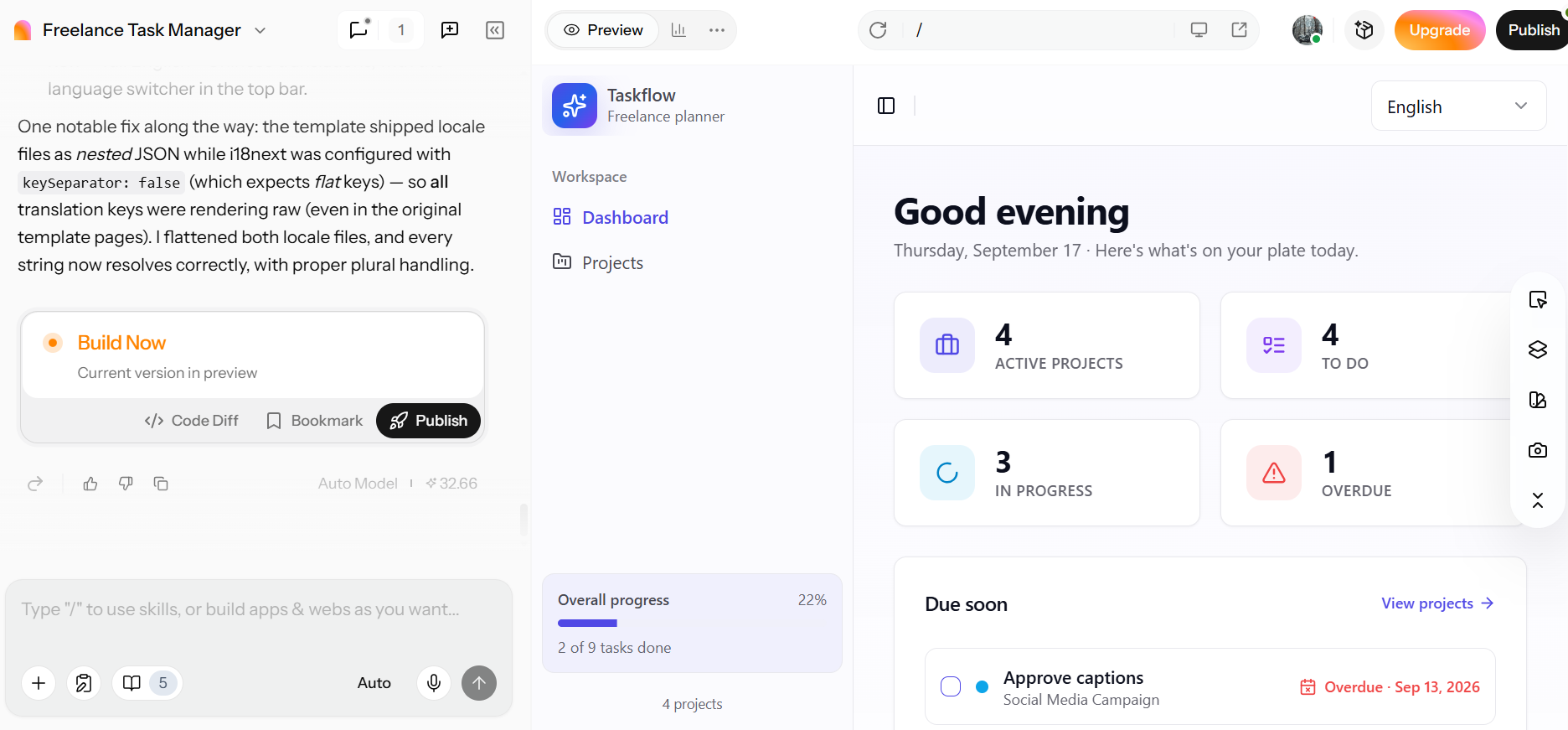
Step 3: Test and publish
Test the application as a user would before publishing it. Click through the main pages, complete important workflows, submit forms, and check that the expected actions produce the correct results. If you find missing functionality or unexpected behavior, return to the editing stage and make the necessary changes. Once the core workflows work as intended, complete the available publishing process and make the application available to users.
Cursor AI vs Enter Pro: Which suits you?
Cursor is an AI code editor, while Enter Pro is an application generation platform. They are not direct, like-for-like alternatives, so the comparison below is about fit rather than a single winner.
- Choose Cursor if: your primary need is an AI-assisted coding environment where you can write, edit, debug, and manage code directly, and you are comfortable working with a code editor.
- Choose Enter Pro if: your goal is to build an application from requirements and work through a broader development workflow that includes AI generation, visual customization, supported integrations, and control over the application as you refine it.
The right fit depends on what I found during hands-on testing and what the project requires. Cursor may make more sense when the workflow centers on direct coding and code-level control, while Enter Pro may suit projects where generating and refining a complete application is the main priority.
Conclusion
Cursor AI is an AI-powered code editor that brings code generation, editing, project context, debugging, refactoring, and multi-step assistance into the development environment. For developers who want AI inside their coding workflow, Cursor is worth evaluating. For people who start with an application idea and want a more application-focused creation process, Enter Pro offers a different approach. Pick the suitable tool according to your project requirements and make your workflow more efficient.
FAQs About Cursor AI
What is Cursor AI used for?
Cursor AI is mostly used for software development tasks, such as writing and editing code, understanding existing projects, debugging errors, and refactoring code. It can also help with writing tests and working on larger coding tasks that span multiple files. The big thing is that it brings these AI-assisted workflows right into the Code Editor.
Is Cursor AI free?
Cursor has various plans with different prices and usage limits. The free tier should be limited compared to paid plans, both in features and AI usage allowances, which vary by plan. Before you commit to a subscription, be sure to check Cursor's official pricing page for the latest plans, prices, and usage limits.
Does Cursor AI work offline?
The offline capabilities of Cursor depend on the feature and workflow you are working with. Some basic editor functions can work without an internet connection, but AI-powered features usually need access to relevant online services. For more on offline use and connectivity requirements, see Cursor's latest documentation.
Is Cursor AI suitable for beginners?
Yes, Cursor can help beginners explain code, solve coding problems, and suggest changes using natural-language prompts. However, some programming knowledge is still useful for reviewing the generated code and spotting errors. You should always check the coding result yourself to ensure accuracy.
How does Cursor AI compare with GitHub Copilot?
Cursor and GitHub Copilot both provide AI-assisted coding, but their workflows and features differ. Cursor combines AI assistance with its code editor, project context, and Agent-based workflows. Enter Pro is another option when the focus is broader application creation rather than primarily AI-assisted coding.
Can Cursor AI access or store my code?
Cursor access to code and how information is handled depends on its current privacy, security, and data-handling policies and settings. Before using it for sensitive or proprietary projects, review the latest official documentation to understand how your code and related data are handled. This is particularly important for business and enterprise development work.
Can Cursor AI work with an existing codebase?
Yes. Cursor can help explain project structure, understand unfamiliar files, modify existing code, debug issues, and work across related files. Enter Pro takes a different starting point, focusing on generating applications from requirements and then allowing users to refine the result.
What are the main limitations of Cursor AI?
Cursor-generated code still needs to be reviewed and tested because suggestions can be incomplete or inaccurate. Complex tasks may also require several rounds of prompting and refinement. For projects where generating and refining an application is the main goal, Enter Pro provides a different application-focused workflow.